How to Find Bus Routes via YBS GO
မြန်မာဘာသာဖြင့် ဖတ်ရှုရန် / Read in English / 阅读中文版
You can easily find the bus routes you need to take within the YBS GO App by following these simple steps.
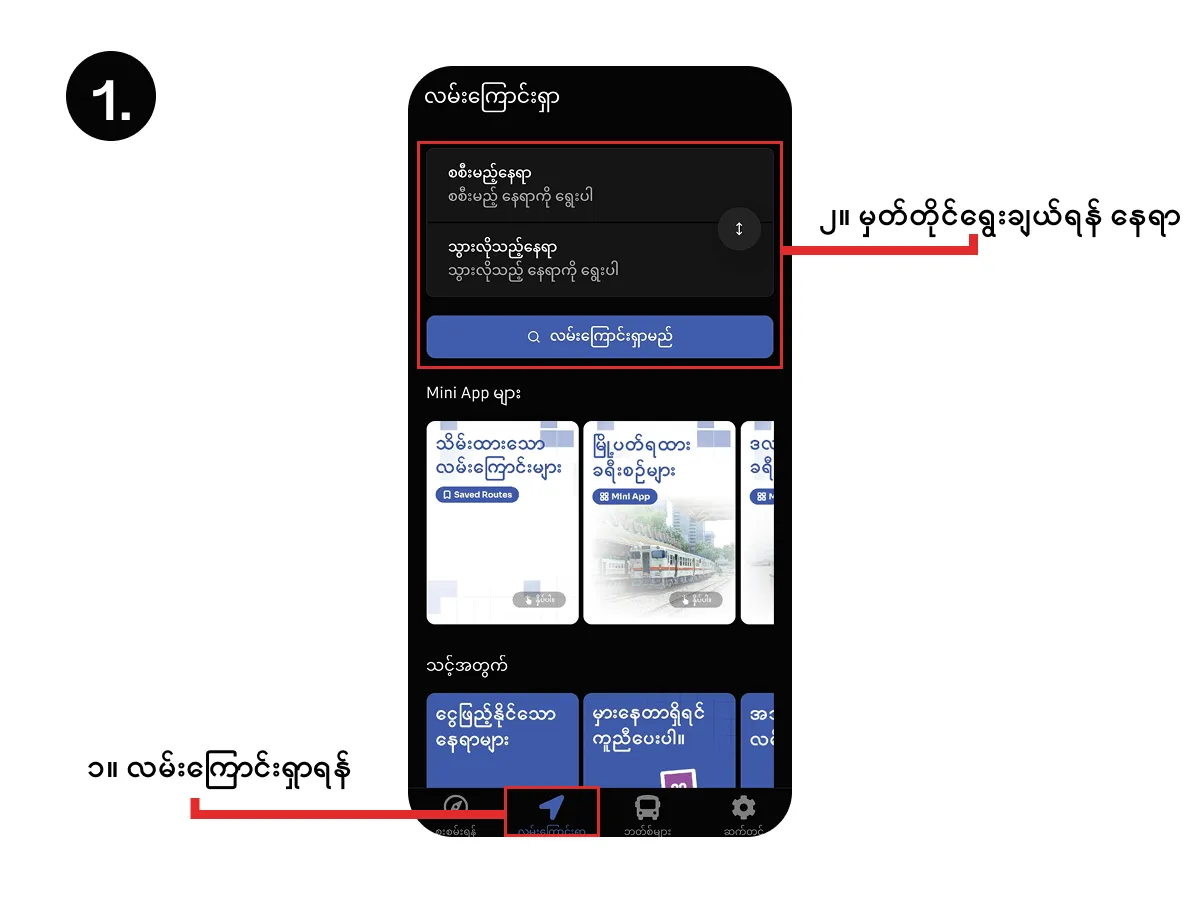
1. Go to Plan Trip
Navigate to Plan Trip to find your bus routes. Then, tap to select your departure stop and destination stop.
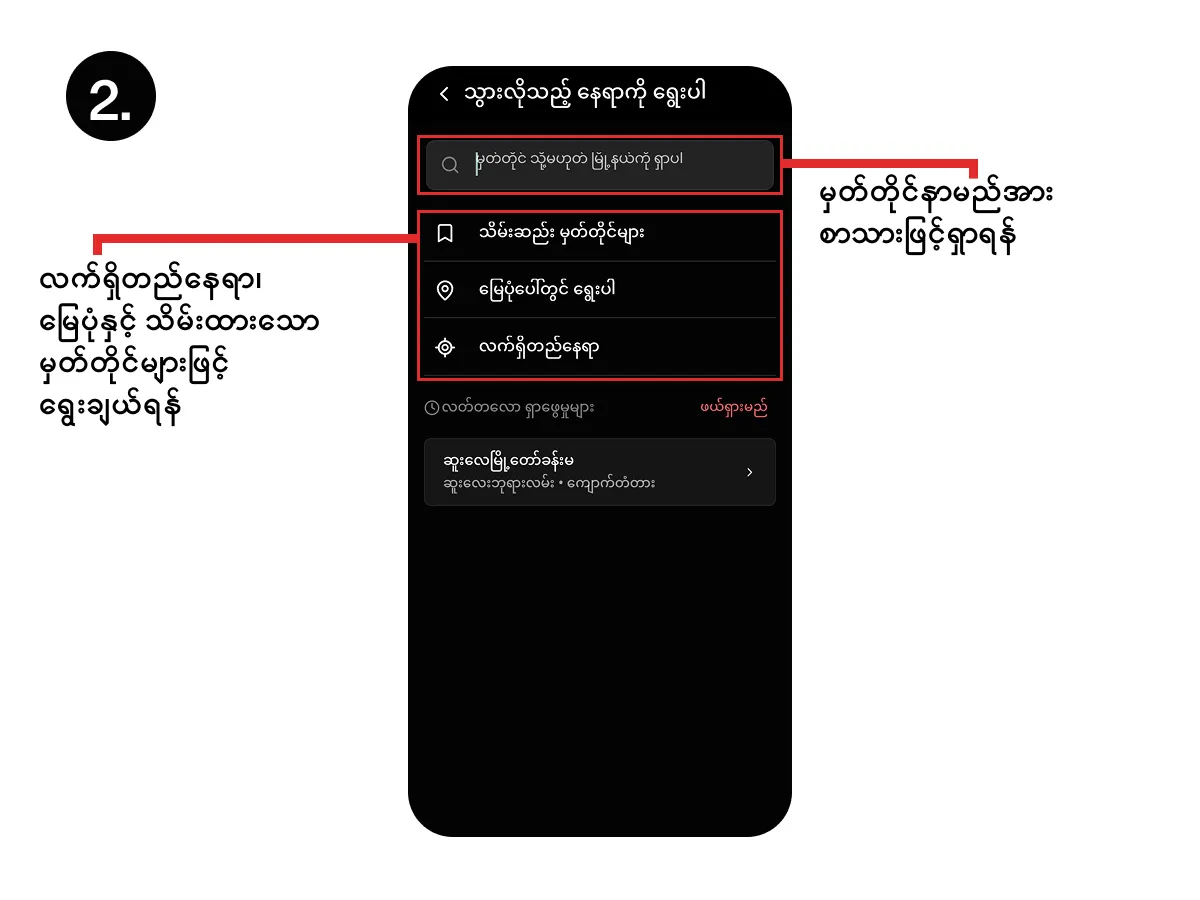
2. Select Your Stops
You can conveniently choose your stops using the following methods:
- Searching by text (if you know the stop name)
- Choosing from your
Saved Stops - Dropping a pin on the map via
Pin on Map - Utilizing your
Current Location
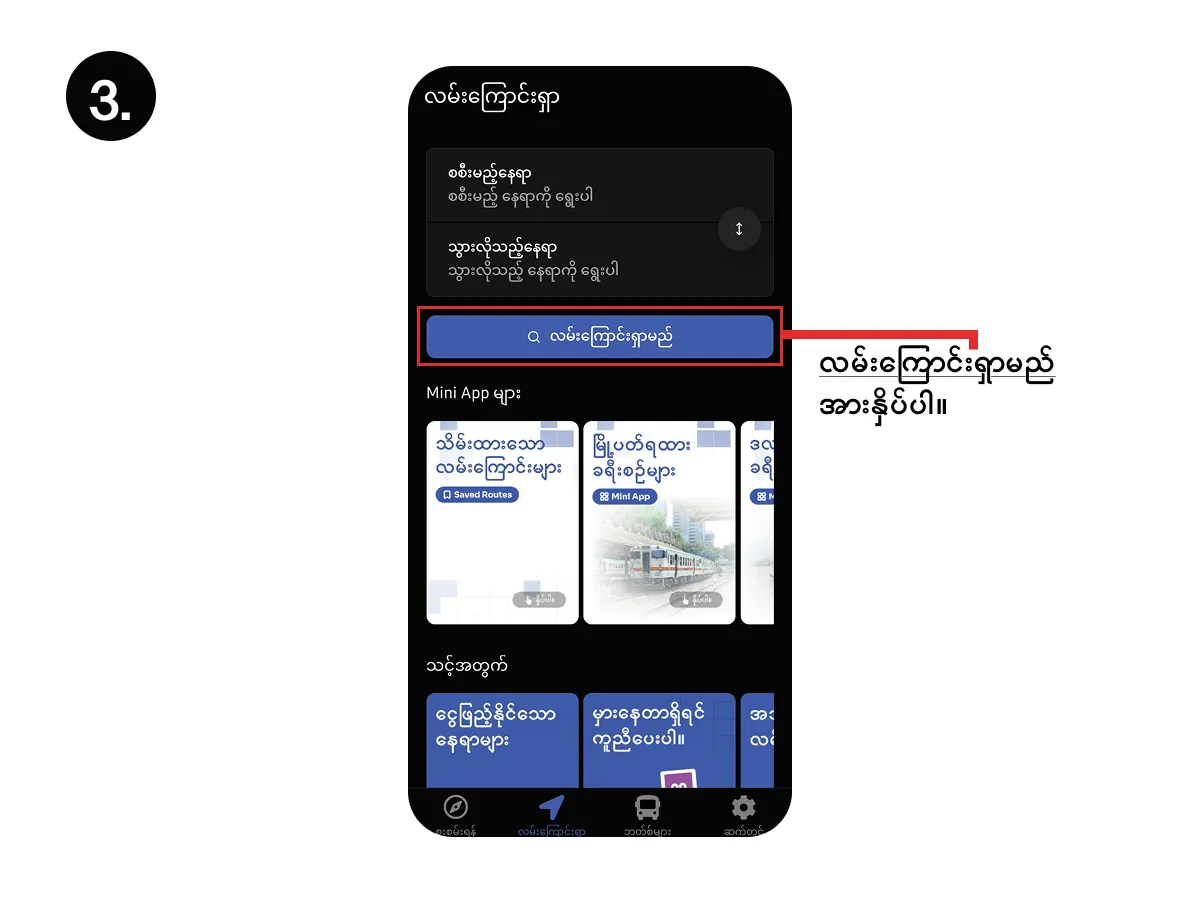
3. Search for Routes
Once you have selected both your departure and destination stops, tap the “Search Route” button.
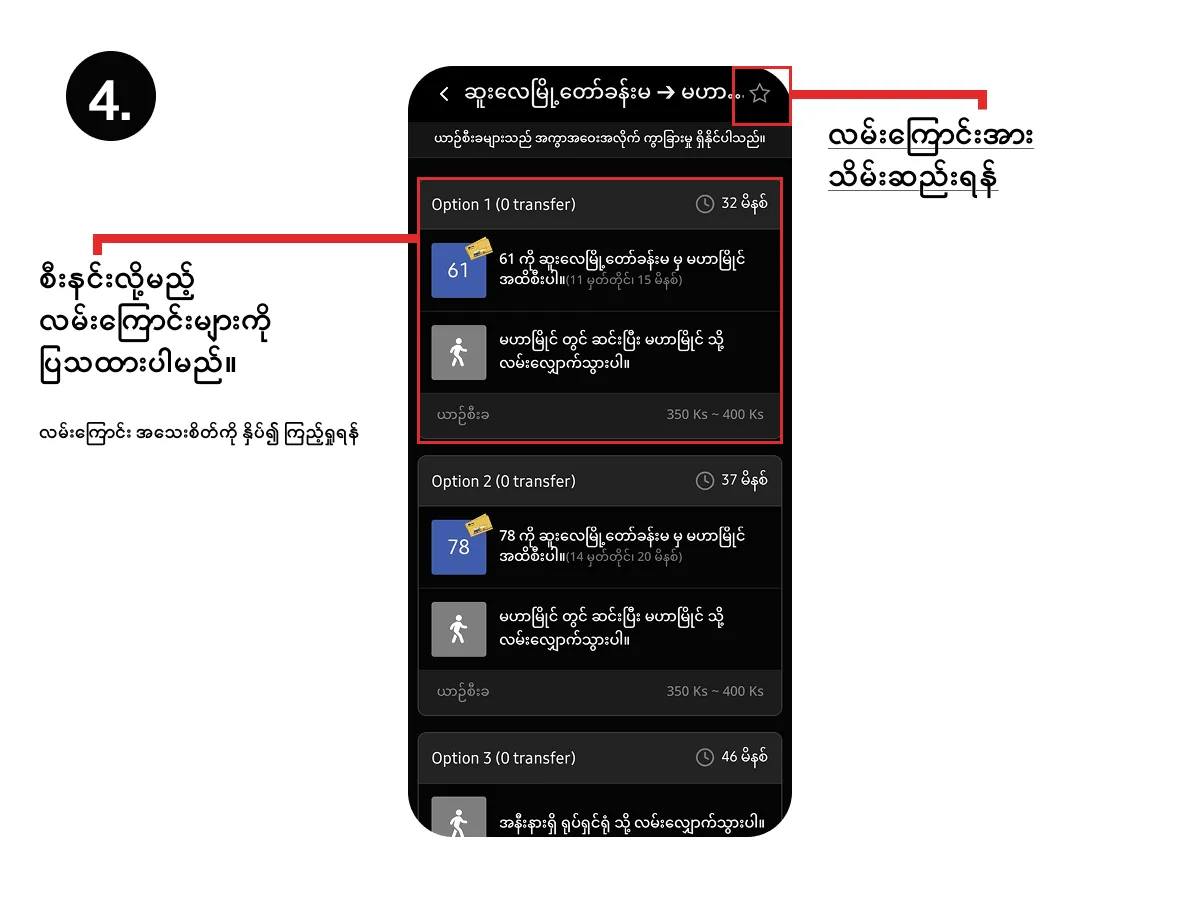
4. Check Results and Choose a Route
You can view the available bus routes along with the total fare and estimated travel time.
Tip: High-frequency bus lines and direct routes will be prioritized in the display, while buses with potentially longer waiting times will be indicated with explanatory text.
You can also adjust your preferred walking distance directly through Settings.
Tap on your preferred route to view the comprehensive details.
5. Detailed Route Guidance & Automated Notifications
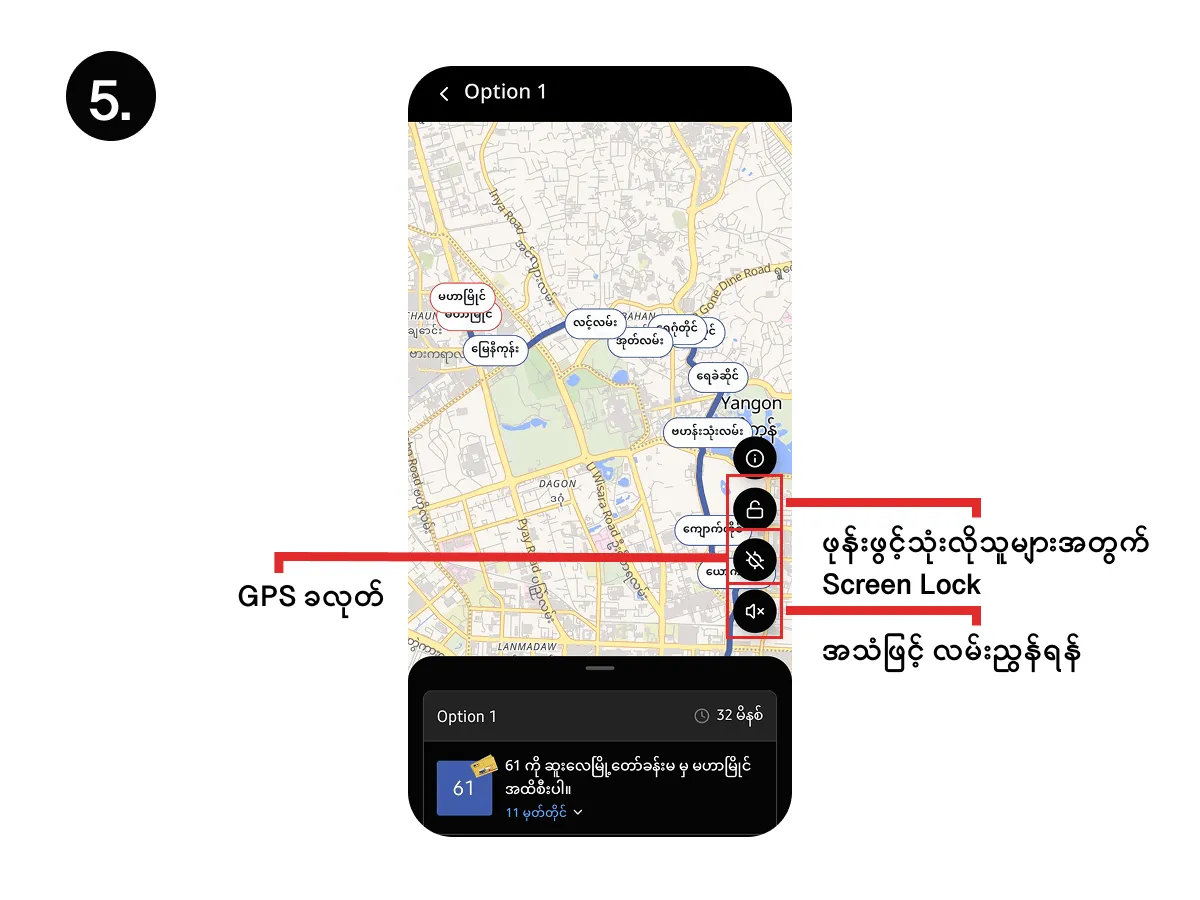
The detailed route breakdown will be displayed, and if you enable GPS, it will show updates based on your real-time location.
Notification System: The app will automatically send you a notification when you are approaching a transfer stop or your final destination.
Voice Guidance System: If voice guidance is turned on, step-by-step navigation will be announced out loud for each stop.
You do not need to stay on the current screen to use the features mentioned above. You can turn off your screen or press the Home key to use other applications; the app will continue to run seamlessly in the background. However, please ensure that the required GPS and Background Usage permissions are granted.
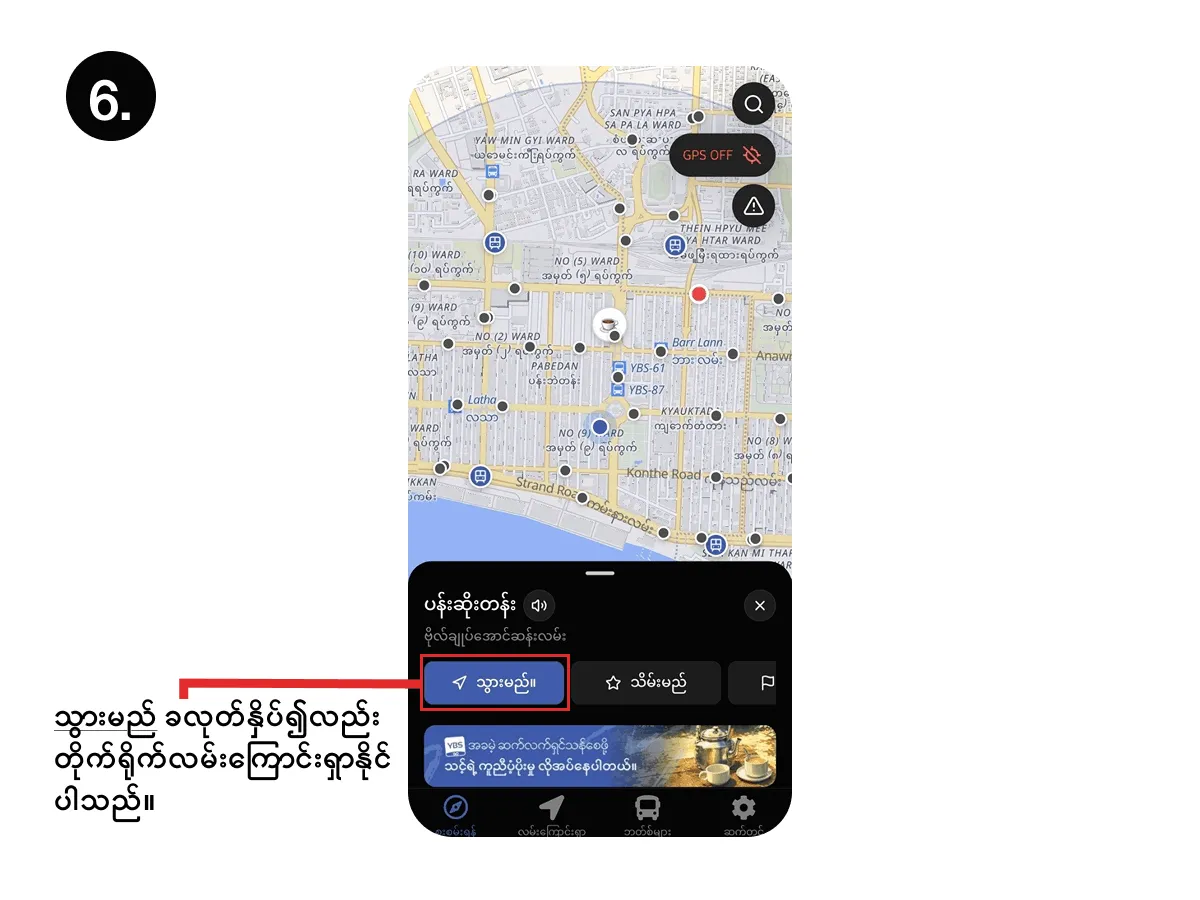
6. Navigating via the Explore Tab
You can also directly select your desired destination by tapping the “Go” button located within the Explore tab.